How to Translate a Product Demo for International Customers
You already have an accurate screen recording of your product. That same video can reach customers in other languages through translated subtitles or a new voice track, without re-recording the demo.
This guide contains buttons labeled Affiliate link, and if you buy through them, Gen AI Tools may earn a commission. Commissions do not buy an independent verdict, and recommendations reflect documented task fit. How we work.
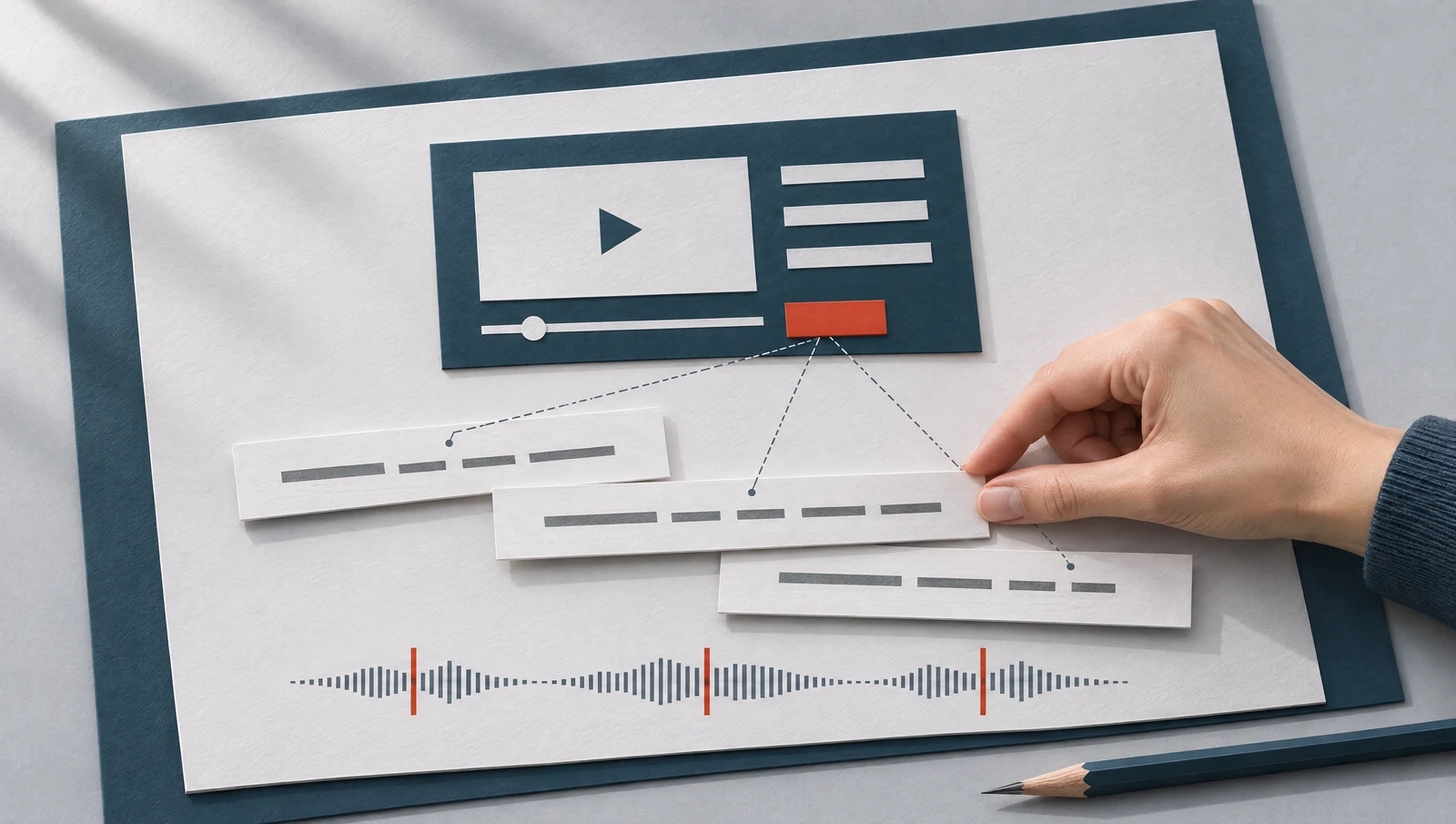
AI-generated editorial illustration. Product examples are shown separately below.
Captions, a dubbed voice, or both
Match the tool to what viewers hear and see. For a screen-only demo, translated captions in VEED are the simplest start. Add a dubbed voice with ElevenLabs, or use Kapwing to edit captions and dubbing in one project. Rask is a broader localization and dubbing alternative, and HeyGen offers optional lip sync when a presenter is on camera. Review the translated script before you export, whichever tool you choose.
OUR RECOMMENDATION
Which tool fits your next step?
Start with captions, then add voice or lip sync only when viewers need it.
Start with VEED when the narration can stay original and viewers read along. Generate subtitles, add a translation for the target language, then edit text and timing; you can also import an SRT or VTT file.
Captions burned into the original video cannot be translated this way.
Use ElevenLabs when you want a dubbed track: its current Dubbing workflow lets you edit transcript and translation, then regenerate single segments. Choose Kapwing when captions and dubbing should stay editable together, with translation rules for brand terms.
Check export credits and plan limits before committing to a full video.
Choose Rask as a broader localization and dubbing alternative: it covers dubbing, voice cloning and lip sync, with a translation dictionary. Choose HeyGen when a speaker appears on camera: it translates speech with optional lip sync and offers a brand glossary.
HeyGen does not translate on-screen text or hard-coded captions.
No new tests for this update. Choices rely on official pages checked 12 to 13 November 2026.
Voice, subtitles and screen: three separate choices
01
Narration
The spoken voice. Dubbing transcribes it, translates it and generates a new voice track. For a screen recording with no presenter on camera, voice-only translation is usually enough; lip-sync matters only when a speaker appears on screen.
02
Subtitles
Timed text shown with the video. Translated captions keep the original voice, let viewers follow at their own pace, and can be burned into the picture or delivered as a separate file.
03
On-screen interface
Menus, buttons, field names and sample data inside the recorded software. Neither dubbing nor caption translation changes these pixels. If a localized interface exists, record it; otherwise quote visible labels exactly.
VEED generates subtitles from your recording and translates them: choose the spoken language, select Add translation and pick the target. You can import an SRT or VTT file or type a translation yourself. Captions burned into the original video are not translated by this feature. Free and Creator accounts get a one-time translation trial; other tiers use AI credits within current limits.
A new voice track for prospects who prefer to listen
ElevenLabs Dubbing lets you upload audio or video, select target languages, generate and download. The current interface lets you edit the transcript and the translation, then regenerate individual segments, handy when one product term needs fixing. API transcript editing and regeneration is Enterprise-only. Dubbing is available on all plans, Free included with watermarks; usage is charged per source minute per target language, with the cost shown before you confirm.
Voice translation with a review step before the final render
HeyGen translates spoken audio, with optional lip-sync; for a screen recording, Translate audio only (no lip-sync) fits. Screen text, graphics and hard-coded captions are not translated. Review & Edit, documented for Pro, Business, Team and Enterprise at the time of writing, lets you adjust script, voice and timing before generating. With captions enabled, you can download the video with or without burned-in captions. A Brand Glossary sets per-term rules.
Referring to an English interface in French narration
A fictional editorial example, English to French, showing the approach rather than any tool's output. The software interface remains in English, so the French quotes each visible label exactly.
On screenCreate workspace
English narration
Click Create workspace to start.
French narration
Cliquez sur « Create workspace » pour commencer.
keep the visible button label
On screenInvite teammates
English narration
Next, click Invite teammates and enter their email addresses.
French narration
Cliquez ensuite sur « Invite teammates » et saisissez leurs adresses e-mail.
the viewer is looking for the English label on screen
On screenSave changes
English narration
When you're done, select Save changes.
French narration
Une fois terminé, sélectionnez « Save changes ».
the exact label keeps narration and captions matched to the click
If the product has a localized interface, record that version and use its actual labels. Never assume that dubbing translates the UI.
VEEDVEED’s official walkthrough: choose the spoken language and add a translation. Shown on a presenter clip, not our software demo. Silent publisher animation, converted to video. Source: VEED.
02 / A practical use case
Dubbed demo for prospects who prefer to listen
Sales wants a French product tour to send after discovery calls, where narration feels more natural than reading.
Upload the demo to ElevenLabs Dubbing or HeyGen and choose French; in HeyGen, pick the audio-only mode, since nobody appears on camera.
Before the final render, edit the translated script: in ElevenLabs, regenerate only the segments you changed; in HeyGen, use Review & Edit and select Refresh Voice after text or timing changes.
Watch the preview against the screen, then generate the final file.
What to aim for: Prospects hear a clear walkthrough in their language, in step with the product on screen.
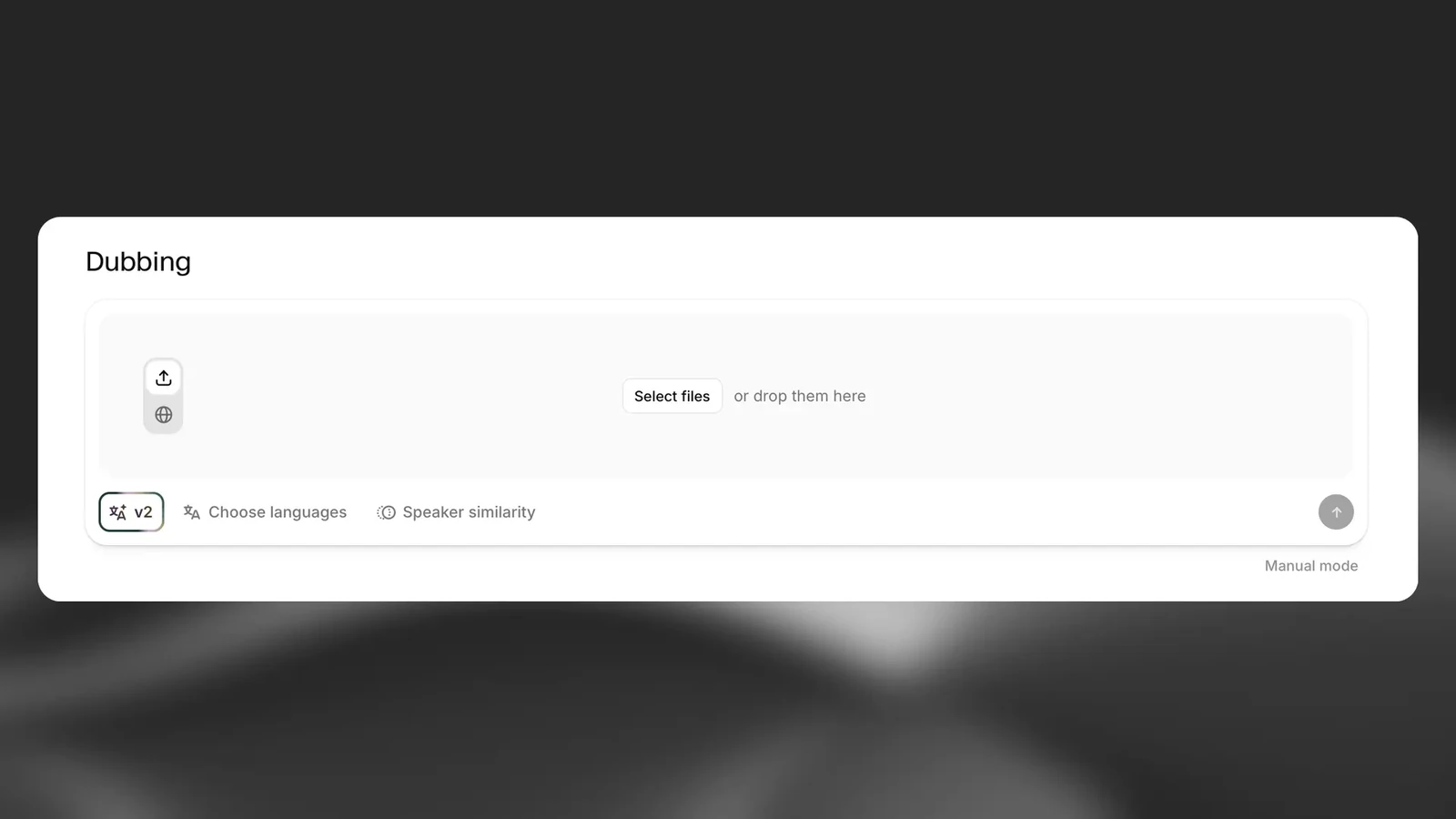
ElevenLabs’ current Dubbing v2 upload and language controls. Official interface illustration. Publisher source. Open the image for a closer look.
03 / A practical use case
Keep brand names and button labels consistent
Your product name, plan names and labels such as Create workspace come out differently from one video to the next.
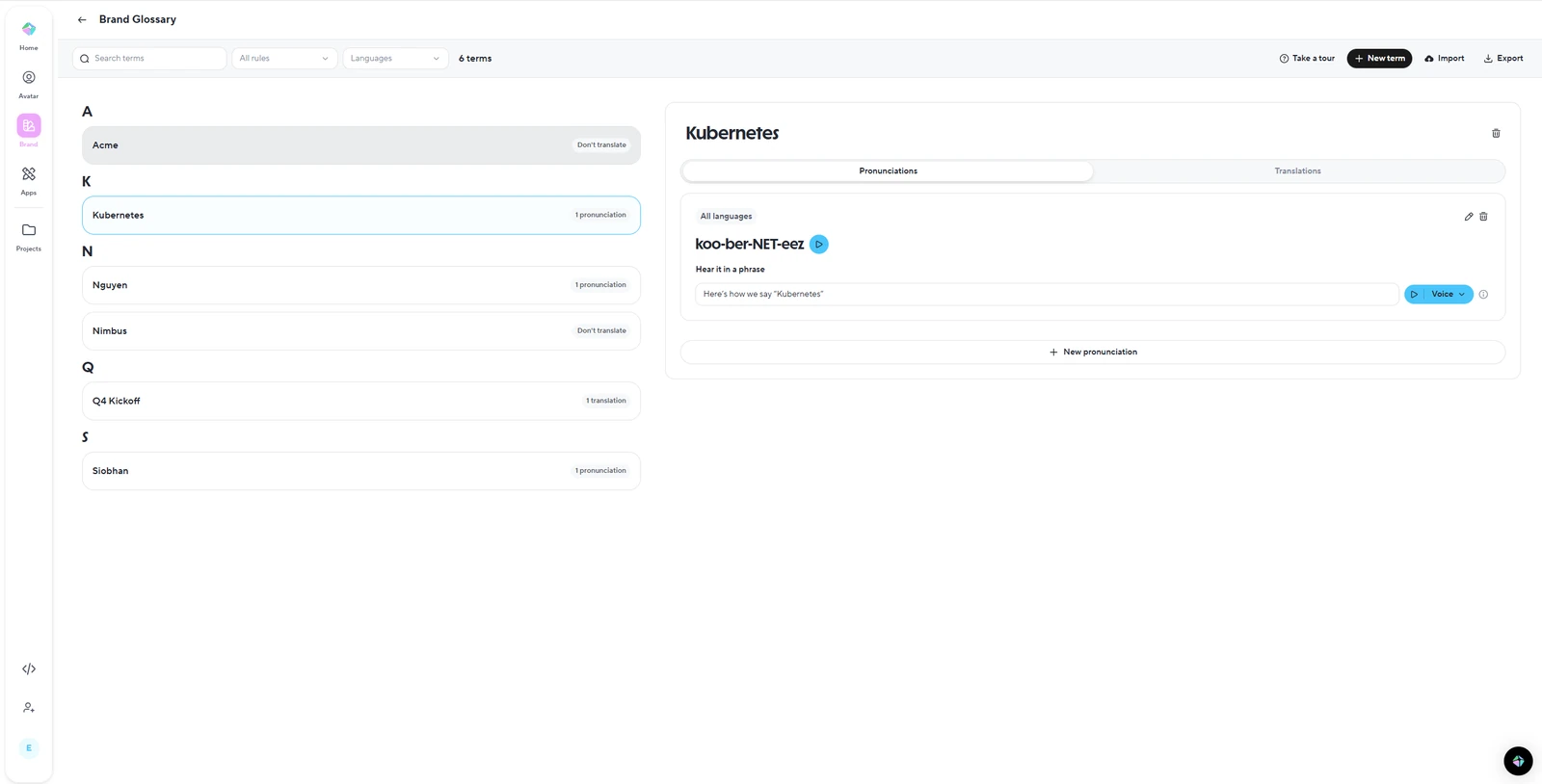
Confirm Brand Glossary is available in your HeyGen workspace, then set product and plan names to Don't Translate, agreed equivalents to Force Translate, and add pronunciations.
Select the glossary in Advanced settings for every new translation, before creating the proofread; it cannot be added afterwards.
Use inline pronunciation edits only for one-off fixes, since they affect a single occurrence.
What to aim for: Every localized video uses the same names and labels, so customers can match what they hear to what they click.
HeyGen’s Brand Glossary, showing per-term pronunciation and translation rules. Official interface illustration. Publisher source. Open the image for a closer look.
A workflow for your first translated demo
Lock the source first
Correct the original transcript or captions before translating. This gives reviewers a reliable source and reduces repeated corrections to names, button labels and timing.
Choose the layers for each audience
Pick captions, narration or both: captions often suit help content, a voice track may suit sales follow-ups. Note separately whether a localized interface exists to record.
Translate one language first
Start with one target language and use your agreed term list during review. If using HeyGen Brand Glossary, select it before starting. Approve this version before preparing the rest.
Review against the picture
Have a bilingual reviewer watch the translated version with the screen in view, confirming each instruction matches what is visible at that moment before approving the final render or export.
Two briefs you can adapt
Translation brief
Translate the [SOURCE LANGUAGE] captions or narration script for this product demo into [TARGET LANGUAGE] for [AUDIENCE]. The interface shown is in [UI LANGUAGE]; quote these visible labels exactly as they appear: [LIST OF LABELS]. Apply this glossary: [TERMS, each marked Don't Translate or with its agreed equivalent]. Keep each line within its original time slot so speech and captions stay in step with the action on screen, shortening wording rather than shifting timing. Translate only what is said, adding no features, claims, benefits or instructions absent from the source.
Reviewer checklist brief
Watch the [TARGET LANGUAGE] version of [VIDEO NAME] with the screen in view, not from the script alone. Check that each instruction matches what is visible at that moment, that quoted labels match the interface exactly, and that glossary terms [LIST] are used and pronounced consistently. Flag lines that add or drop meaning, drift from the action or read unnaturally, with timestamps.
Prepare the files your team needs
Deliverable
Use it for
Check before sharing
Video with translated captions
Help articles, onboarding emails and social clips watched without sound.
Captions stay readable and do not cover the buttons being clicked.
Video with translated narration
Sales follow-ups and product tours for prospects who prefer to listen.
Each spoken instruction lines up with its action on screen, and product names sound right.
Separate subtitle file
Players and learning platforms that load captions separately, so viewers can switch language.
Export and access depend on your tool and player. VEED's help page lists separate subtitle-file downloads for Pro and Enterprise, so check your current export entitlement.
If you deliver an interactive tour rather than a video, Demoboost AI Translate localizes guides, adds a language selector in Playback and supports do-not-translate lists and per-language glossaries. For localized narration, you upload a recording for each language.
Product and plan names follow your glossary in every language
Quoted button labels match the interface exactly
Narration and captions stay in step with each click
A bilingual reviewer has watched the final render, not only the script
PRACTICAL ANSWERS
Your questions, answered
Answers on subtitles, dubbing and the review steps that keep a translated product demo accurate.
Should I use subtitles or dubbing for a translated demo?
Use translated captions for help content and videos watched without sound, and a dubbed voice for sales follow-ups where listening feels natural. You can do both. Either way, the interface pixels stay in the original language, so quote visible button labels exactly. VEED handles caption translation; ElevenLabs Dubbing generates a translated voice track.
Will translation change the text inside my software screens?
No. HeyGen documents that screen text, graphics and hard-coded captions are not translated, and VEED's subtitle translation cannot translate captions already burned into the video. If a localized interface exists, record that version. Otherwise keep narration quoting the visible English labels exactly so viewers can match what they hear to what they click.
Can a general chat assistant translate my demo video?
It can help translate transcript text, which you can then import into a captioning tool, for example as an SRT or VTT file in VEED. It is not a dubbing tool. For a new voice track, upload the video to a dubbing tool such as ElevenLabs. Review translated lines against the screen, since wording can drift.
How accurate is AI video translation, and how should I review it?
Accuracy varies with audio quality, accents, technical terms and the language pair, so never publish unreviewed. Correct the source transcript first, then have a bilingual reviewer watch with the screen in view. Kapwing and HeyGen let you edit the translation before export, though HeyGen's Review & Edit is documented for specific plans.
Often there is a limited one. ElevenLabs Dubbing is available on all plans, Free included, with watermarks, and VEED gives Free and Creator accounts a one-time translation trial. Use the free option on one short clip to judge quality, then check credits, watermarks and export access before committing a whole video.
How do I fix one mistranslated product term without redoing the video?
Edit the line and regenerate only that segment. In ElevenLabs' current Dubbing workflow you can edit transcript and translation and regenerate individual segments. In HeyGen, select Refresh Voice after changing text or timing. For recurring terms, set a glossary rule beforehand so the fix is not needed again.
Approve one language first, then repeat. Translate a single target, review it against the picture using your agreed term list, and correct the source script. HeyGen's Brand Glossary must be selected before you start each translation, and Kapwing offers saved translation rules, so set terms up first to avoid fixing every version separately.
Several tools offer voice cloning: Kapwing can clone the original speaker, HeyGen describes preserving the speaker's voice, and Rask lists voice cloning. For a product demo, use only a voice you have permission to clone, and listen for mispronounced product names. Add pronunciation rules where the tool supports them.
What if the translated narration runs longer than the clicks?
Shorten the wording instead of shifting the action. In Kapwing, the Timing toggle adjusts speed so dubbed audio aligns more naturally, and HeyGen's Review & Edit lets you adjust script, voice and timing before generating. Then watch the preview against the screen so each instruction lands as the matching click appears.
Is it safe to upload an unreleased product demo for translation?
Review the vendor's security and retention terms before you upload, including whether content is used to train models. Rask, for example, states SOC 2 Type II certification, but a certification is only one input. If the footage is confidential, ask your security contact first and use only the clips you need.
Is lip sync worth paying for in a screen-only demo?
Usually not. Lip sync matters when a face is on screen; for a screen recording, captions or a dubbed voice carry the message. HeyGen documents a translate-audio-only mode, without lip sync, for screen recordings.
Based on official documentation checked on 12 November 2026, without a new product trial. Official illustrations are credited to their publishers; examples and briefs are editorial. Features and plan access can change.
Disclosure: ElevenLabs buttons labeled Affiliate link in this guide are PartnerStack referral links that may earn Gen AI Tools a commission on qualifying purchases. No placement in this guide was purchased, official source links stay direct, and ElevenLabs is included for its documented fit for the task.

 ElevenLabs
 Kapwing
 Rask