How to Animate Your Logo for Videos and Social Posts
Your new logo already works on a page. Here is how to give it motion for intros, outros, social loops and announcements, and how to choose between simple editing presets and a generated scene.
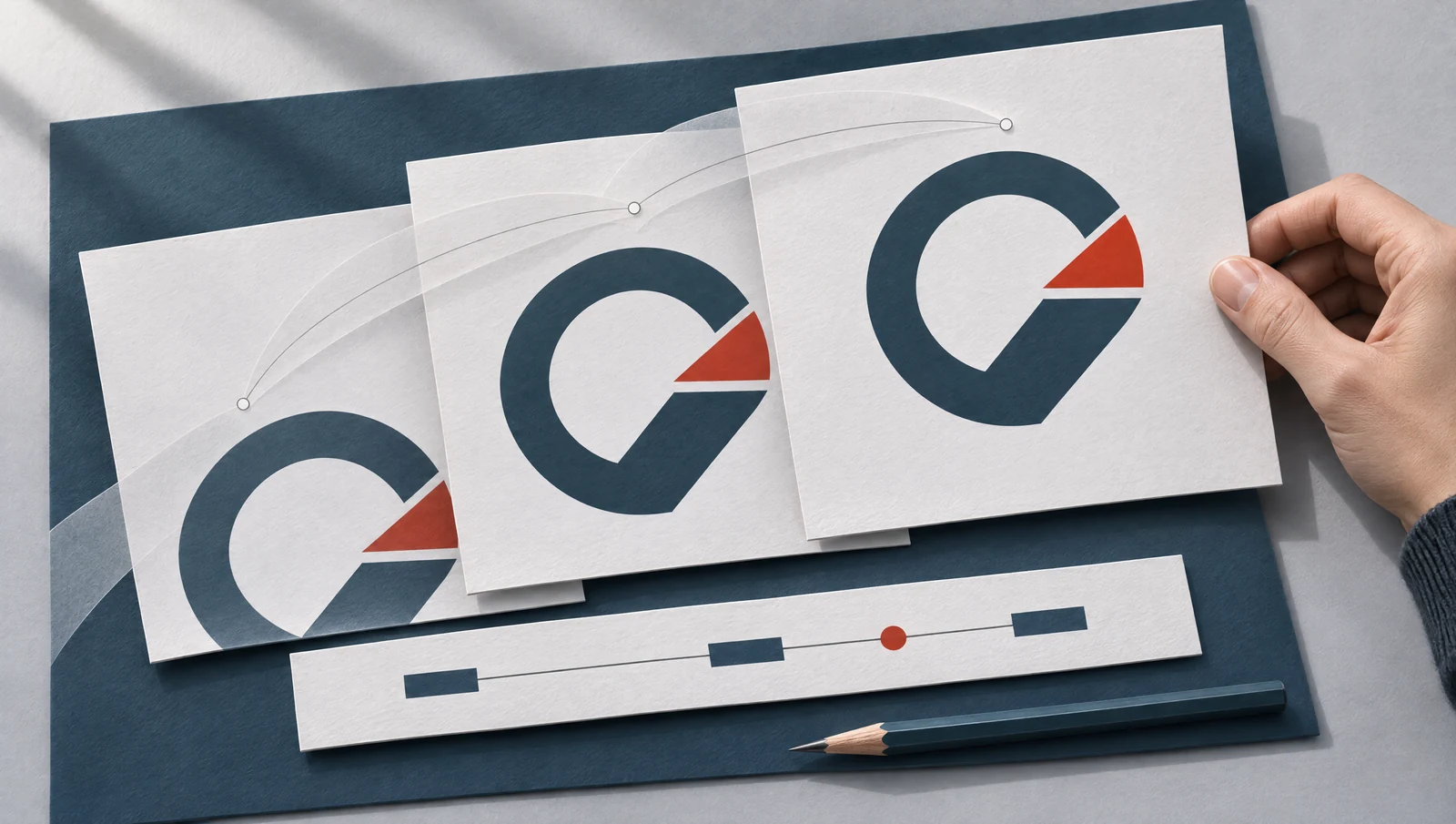
AI-generated editorial illustration. Product examples are shown separately below.
Short answer
To animate a logo you already have, start with the presets in Canva or Adobe Express, which apply motion to your existing file. Use Renderforest for a template reveal, SVGator for keyframes and web-ready SVG, Jitter for editable motion, and Runway only for a generated background, since it does not promise an unchanged logo.
OUR RECOMMENDATION
Which tool fits your next step?
Pick by how much control and which file format you need.
Start with Canva when you want templates or a blank design and an MP4 or GIF download. Use Adobe Express when you prefer In, Out and Loop effects with adjustable speed, intensity and direction applied to your logo.
Choose Renderforest when you want a ready-made reveal for an intro, outro or presentation opener. Pick a template, upload your logo as a PNG, add music and export MP4.
Check the chosen template's resolution, watermark and export entitlements before you build.
Use SVGator when the animation will live on a website or app: it imports SVG, uses a keyframe timeline and exports SVG or Lottie. Choose Jitter for editable motion design with templates and AI-generated effects.
In SVGator you control paths and timing yourself; allow time for keyframe work.
Use Runway only when you want generated motion, lighting or a background scene, not a faithful logo animation. Your image becomes the first frame and the prompt describes movement, so place the exact logo back on top afterwards.
Letters and shapes may change; compare every frame with your original.
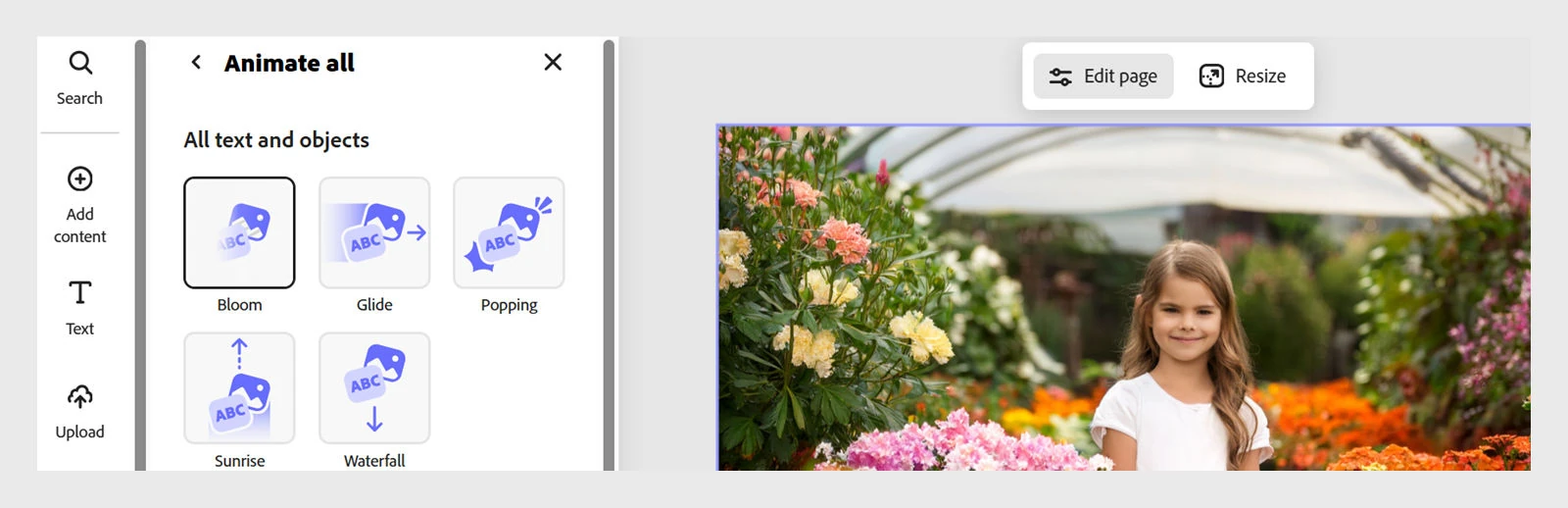
Adobe Express documents animation for images, text and other objects. You can animate the whole design or one element, using In, Out and Loop effects with adjustable intensity, speed and direction. Its help pages use a bouncing logo as an example.
Templates or a blank canvas, downloaded as MP4 or GIF
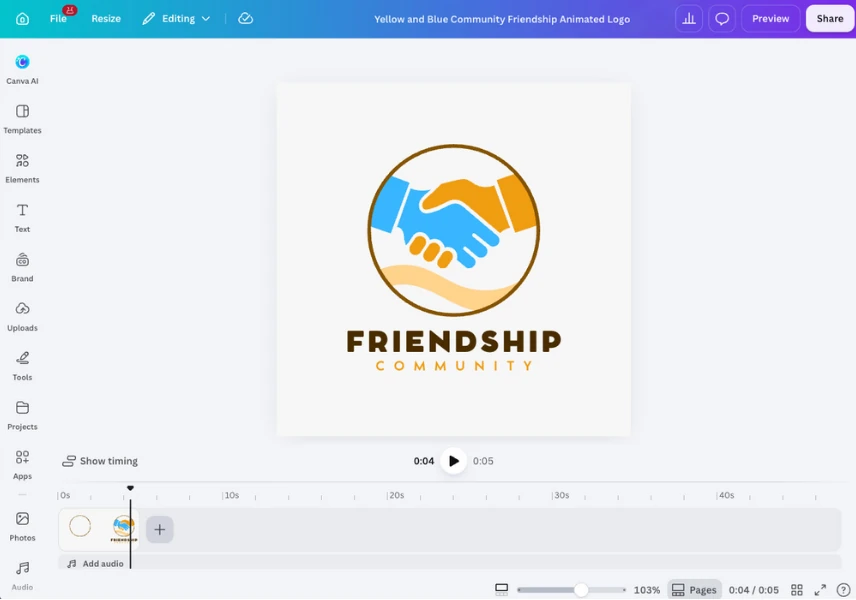
Canva's animated logo maker page describes starting from a template or a blank design, animating single elements or the whole design, and downloading as MP4 or GIF. Pick MP4 when the clip needs sound. A GIF is silent.
Runway's image-to-video uses your image as the first frame, and your prompt describes motion and camera. Its guide warns that image flaws can be amplified, and logos are not promised to stay unchanged. Gen-4.5 is documented as requiring a Standard or higher plan.
Videos open on a cold first frame and end abruptly, so viewers can miss who made them.
Place the logo on a canvas sized for your video, with the background in a brand color.
Apply an In effect to the logo for the opening, then build a matching Out effect for the closing card.
Keep the speed gentle and the direction consistent so the intro and outro feel like a pair. Export as MP4 if you plan to add sound.
What to aim for: A recognizable bookend that tells viewers whose video this is without delaying the content.
Adobe’s animation controls, illustrated on a photo design. Publisher screenshot, not a logo export from our own test. Source: Adobe.
02 / A practical use case
A restrained loop for social posts
You want to add a little movement to a logo post while keeping the name easy to read.
If the symbol and wordmark are separate editable elements, choose one to move and leave the other still. If your logo is one flat image, animate the whole image or prepare separate assets first.
Choose a gentle looping effect and lower its intensity where that setting is available.
Preview it several times in a row. If the restart point jumps, slow it down or pick a softer effect.
What to aim for: A subtle, repeatable movement that draws the eye and keeps the logo readable on every pass.
03 / A practical use case
A moving background for a brand announcement
A launch or rebrand post needs atmosphere, yet the logo itself must stay accurate.
Generate a background scene from a still image that does not contain the logo, describing the motion and camera in your prompt.
Review the clip for warped shapes or artifacts before you use it.
Place your original logo file on top in your usual video editor, so the mark stays as designed while the scene moves behind it.
What to aim for: An eye-catching announcement where the scene feels fresh and the logo stays faithful to your brand guidelines.
Step-by-step workflow
Decide the job first
Write down where the animation will appear: video opening, end card, social feed or announcement post. The placement decides the length, the framing and whether you need sound at all.
Choose simple motion or a generated scene
Preset animation moves your real logo file, which suits intros, outros and loops where the mark must stay crisp and on brand. A generated scene suits backgrounds, mood and storytelling. You can combine both in one piece.
Prepare a clean source
Start from the final approved logo version at good resolution. For image-to-video, Runway notes that flaws in the input image can be amplified, so clean edges and uncluttered backgrounds are worth the extra minute of preparation.
Review on the target screen
Watch the export on a phone and on a desktop, in the feed or player where it will actually live. Check readability, color accuracy and the first and last frames, which can end up as previews.
Briefs and prompts to copy
A simple video intro
Editorial suggestion. Canvas: your video size, background in the primary brand color. Logo: approved file, centered. Opening: a gentle entrance on the whole logo. If you have separate symbol and wordmark assets, bring in the wordmark a beat later. Hold the full logo still long enough to read; around two seconds is one starting suggestion, not a tool limit. Closing: use a matching exit on the final card.
Motion prompt for a generated background
Editorial suggestion for an image-to-video tool, using a background image without the logo: 'Slow forward camera drift through soft light, gentle particles rising, calm and steady motion, no new objects appearing.' Add your untouched logo afterwards in an editor. If you put the logo in the source image instead, inspect every frame for altered letters or shapes.
Choose your export format
Format
When to use it
Before you share
MP4
Video intros, outros and announcements, especially when the clip carries music or a sound mark.
Confirm the audio, the colors and the first frame. Treat the background as part of the design rather than expecting it to be transparent.
GIF
Silent loops for places that play short animations without sound, such as some posts or chats.
Make sure the loop restarts smoothly and the message works without audio, because a GIF carries none.
Checks before you publish
The logo matches the approved version in shape, spelling and color in every frame.
The motion supports the message: one clear movement usually reads better than several competing effects.
The plan or model access you need is confirmed in your own account before you commit to a format or tool.
PRACTICAL ANSWERS
Your questions, answered
Answers on moving a logo you already have, keeping the lettering intact and choosing the right export.
Can Canva animate a logo?
Yes. Canva describes starting from a template or a blank design, animating single elements or the whole design, and downloading as MP4 or GIF. If your symbol and wordmark are separate elements, move one and keep the other still. Pick MP4 when you need sound, and preview the export before publishing.
A text chat on its own is not a dependable way to get a faithful logo animation. Use a tool that moves your real file, such as the presets in Adobe Express, or an image-to-video tool like Runway for generated backgrounds. Runway does not promise logos stay unchanged, so place your original logo on top afterward.
You can often start free, but the useful question is what the export includes. Renderforest advertises a free start with templates, and Canva offers MP4 or GIF downloads. Before building, check watermark, resolution and export access on your plan. Test a short clip end to end rather than assuming the free version covers your final format.
It can. Runway's guidance says image flaws can be amplified and does not promise unchanged logos or text. Keep the wordmark crisp by using preset animation on your real file, or generate only a background and overlay the original logo in your editor. Compare every frame, especially first and last, with the approved version.
Short enough not to delay the content, long enough to read the mark. Hold the full logo still for a moment; around two seconds is a starting suggestion, not a tool limit. Intros can be brief, and an end card can linger slightly. Preview on a phone, and adjust timing and speed in your editor.
Can I export an animated logo with a transparent background?
Do not assume a plain MP4 is transparent, since the background is part of the video. For overlays you need a format that supports transparency. SVGator lists WebM, MOV and APNG among its export formats, so run a test export and place it on a contrasting color before you commit.
Export an animated SVG, then add it with an img tag if it only needs to play, or paste the code inline instead. SVGator describes both approaches. Keep a static fallback of the final frame, view it at header size, and check that hover or click effects behave on touch screens.
Runway says the image supplies the first frame, so the prompt should describe motion and camera. Our suggested prompt: 'Static centered composition, soft light drifting across the background.' For a faithful logo, animate only the background and overlay your original logo unchanged as a separate editing step, because generation does not guarantee preservation.
Choose by control. Canva applies ready animations to your existing elements and exports MP4 or GIF, which is quick for social posts. Jitter suits editable motion design, with templates and AI-generated effects you can tweak, but expect more setup time. For a single simple bounce or fade, start with Canva.
Check two things: that you hold the rights to the mark itself, and that the tool's terms allow commercial use of its output, including templates and music. Renderforest, for example, offers royalty-free music tracks and templates, but terms vary by plan. Read the terms in your own account and keep records of the assets you used.
When the logo plays on your own site or app. SVGator describes animated SVG as scalable, light and able to respond to hover or click. Choose MP4 for social posts and presentations, where sound is possible; a GIF is silent.
Documentation-based guide, no new tool trial performed. Feature descriptions come from Adobe, Canva and Runway help or product pages as read during research. Any vendor illustrations shown with this article are credited to their owners and are separate from the hypothetical scenarios, briefs and timings here, which are editorial suggestions, not tested results.


 Renderforest
 SVGator
 Jitter
 Runway
 Canva when you want templates or a blank design and an MP4 or GIF download. Use
 Adobe Express when you prefer In, Out and Loop effects with adjustable speed, intensity and direction applied to your logo.
 YouTube
02 / A practical use case
A restrained loop for social posts
You want to add a little movement to a logo post while keeping the name easy to read.
What to aim for: A subtle, repeatable movement that draws the eye and keeps the logo readable on every pass.